Rib-eye Steak with Bone Marrow and Potato Salad
vote now

When I made my first order at The East London Steak Co. , I knew I had to include bone marrow. I've had it before, scooping it out after a hearty dish of my mum's osso bucco. And I knew I wanted to try cooking with it myself.
At first I wasn't sure what to do with it. Then I remembered that amazing bottle of Châteauneuf-du-Pape lying in our kitchen and thought about making a very special meal for two consisting of perfectly cooked rib-eye steak and accompanied with roasted bone marrow. This one is not for the dieters, but then again everyone needs a little extravagance every now and again.
The dish, for all it's cholesterol glory was quick to make, simple even. But supremely delicious, I am salivating just thinking about it.
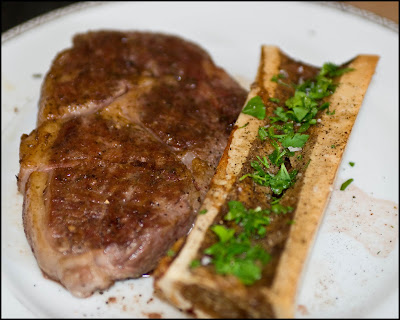
So I started off my marinating the meat, the same way I did it for the Perfect Rump Steak recipe I've made before.Just a bit of olive oil, generous helpings of salt and pepper and quick sprinle of drink parsley. I let that sit for a little bit until I was certain the steak was at room temperature.

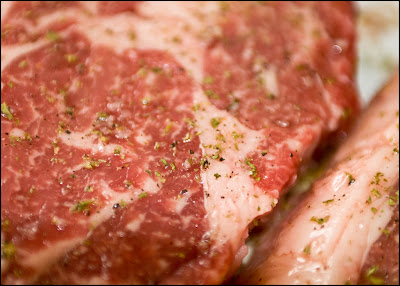
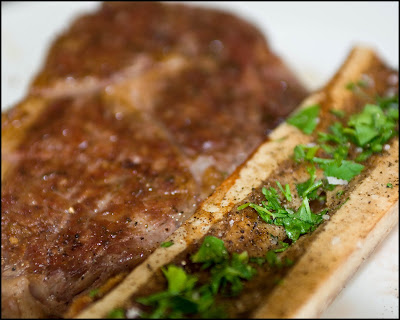
Then I proceeded to pan fry it using my griddle pan. I did 3 minutes on each side for these as they are quite thickly cut and I wanted to make sure the fatty 'eye' was properly rendered. The result is this juicy piece of meat that was perfectly pink in the middle after resting for 15 minutes. You can see the juices oozing out of it in the second picture.
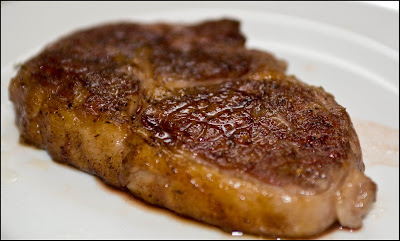
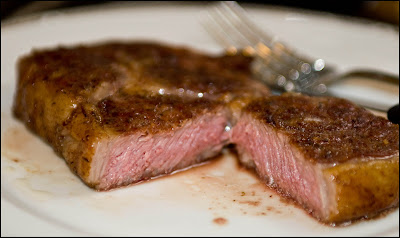
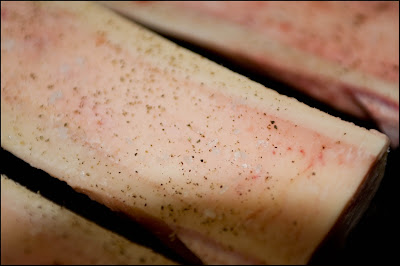
I only seasoned my marrow with salt and pepper and then tossed it in a hot oven to roast for 15 minutes. I put this in at the same time as I started cooking my steak so they were ready when the steak was ready too.
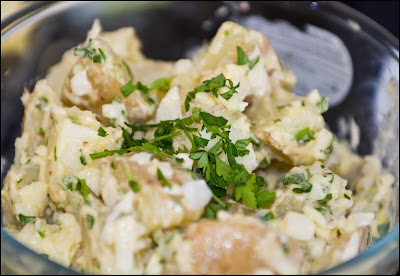
We needed some vegetables, so I made a quick potato salad while I was waiting for the marrow to roast and the steak to rest. Everything was going so well until I realised I had no mayonnaise and started to panic a little. Then I realised I had all the ingredients to make the mayonnaise from scratch.
I've never actually made mayonnaise before, simply because I have a running order of mayonnaise with my Abel & Cole delivery. When these things happen, to get the recipe perfect, I always resort to a single book aptly named The Cook's Bible from Le Cordon Bleu. This book helped me to make a lot of firsts from pizza bases to de-boning chickens, the pictures are worth a thousand words and there are soo many tips on the margins. An essential cookbook.
Judging from the amount of fat that seeps out of the marrow, I could have made my mayonnaise using that instead of oil. But I didn't realise that at the time, and I think one coronary is enough in this meal. I sprinkled a bit of chopped parsley in my mayonnaise as I thought that would go well with the potato salad, and I had a bit too much for the marrow bones.
The one think I love about getting a delivery from the ELSC is the fact that you know the beef is going to be well hung, of a variety you probably haven't heard of before and utterly delicious. I really wasn't disappointed this time, it was by far one of the most satisfying dishes I have ever eaten!
2 pieces bone Marrow
handful of Parsley, chopped
300g (2 Steaks) rib-eye Steaks
Potatoes
1 Onion
Salt & Pepper
dried Parsley
1 Egg yolk
Oil
½ tbsp Mustard
Recipe
Pre-heat oven to 200C. Start by marinating the steak in a bit of olive oil, salt, pepper and dried parsley. Leave to stand for 10-30 minutes.
Sprinkle salt & pepper over your marrow and put in the oven for 20-30 minutes, or until the marrow starts to pull away from the bone.
Boil the potatoes until tender. Make the mayonnaise by mixing egg yolk with salt, pepper and the mustard. Then slowly pour oil while you?re mixing the egg in a thin stream until emulsified. It should turn to a light yellow colour when you?re done. Taste as you?re going along to see if you need more salt or mustard. Mix in some chopped parsley and finely chopped onion. Next add the potatoes with a bit of seasoning and mix together. Put in the fridge until required.
Heat a griddle pan until hot and then sear the steaks on each side for 3 minutes. Leave on a plate to rest for 10 minutes.
Add rested steak to plate, then bone marrow and spoon some potato salad on the side. Eat.

Dinner at Maya's
Comments